

Geofenced Photo Verification
See the truck, not just its location. CargoGuard uses location-based photo requests to collect shipment images with date, time, and location details. Review that evidence with the driver information and pickup assignment before freight leaves the dock.
What Is Geofenced Photo Verification?
Geofenced photo verification combines location-based photo requests with shipment images and their capture details. A geofence is a virtual boundary around a location. CargoGuard uses location-based requests to help collect photos during the shipment workflow, keeping the images with the associated load for review.
The useful question is not simply whether a photo was uploaded. It is whether the visible truck, the recorded time and location, and the approved pickup assignment fit together. Confirm the request timing and location settings for your workflow during the demo.
From Photo Request to Broker Review
1. Agree on the pickup evidence
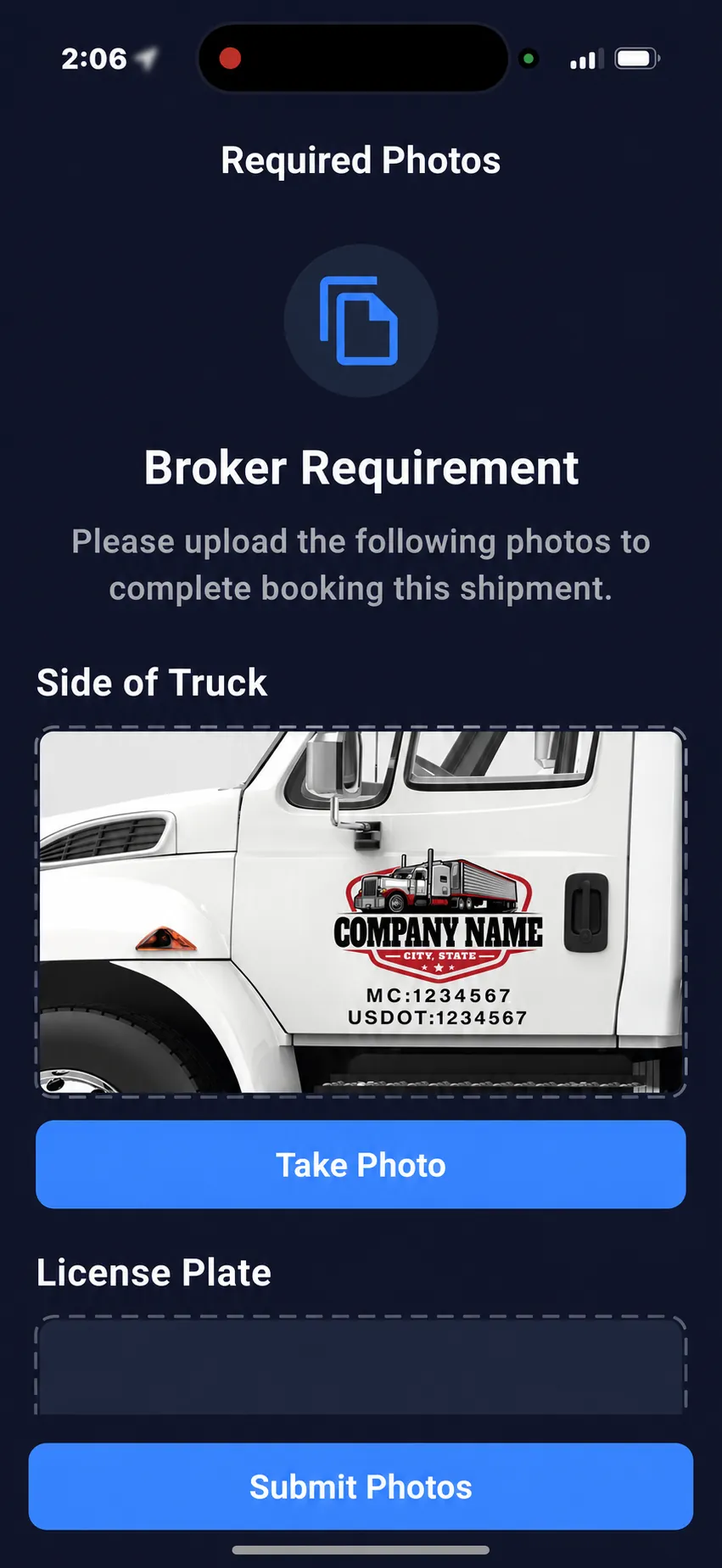
Tell the driver which photos are needed and who will review them. Include a readable view of the carrier markings and the required vehicle identifiers. Confirm the supported photo requests and location settings before dispatch.
2. The driver captures the photos
The driver follows the requests in the CargoGuard mobile app. Take photos while safely parked and follow the facility’s photography rules. Keep identifying details readable rather than distant, blurred, or hidden by glare.
3. Your team checks the assignment
Review the submitted photos and their date, time, and location information with the load. Compare the visible equipment with the assigned carrier and driver verification information. Resolve discrepancies before making the release decision.
Read the Photo. Check the Context.
Vehicle identity: Read the carrier name, MC or USDOT information, and plate details visible in the requested images. Compare them with the authorized assignment. Different markings need clarification, not an automatic accusation against the driver.
Time and place: Check whether the recorded capture details make sense for the shipment stage. Review the photos with the latest tracking updates; neither a timestamp nor a map position establishes pickup authorization on its own.
Visible condition: Where load photos are part of your procedure, check what is actually visible and identify missing views. A photo cannot show concealed damage or confirm the condition of items outside the frame.
FMCSA recommends requesting truck and trailer photos, recording plate information, and comparing the arriving equipment with the contracted carrier. Its broker and carrier fraud guidance also recommends verifying contact numbers through SAFER.
Missing or Mismatched Photo? Resolve It Before Release.
Ask for a clearer image when important details cannot be read. For a different truck or carrier marking, confirm the assignment through an established broker or carrier contact and the pickup facility. Record the discrepancy, the explanation, and the authorized release decision in your operating records.
Use the shipper pickup checklist and double brokering prevention workflow to connect the photo review with your broader controls. These are staff review procedures, not a promise that CargoGuard automatically blocks every incomplete or suspicious pickup.
Keep the Photos with the Load
CargoGuard organizes shipment photos with their associated load. Review them alongside driver details, the shipment timeline, and bills of lading and proof of delivery. Photos support the visual record; shipping documents serve a different purpose. Confirm access, retention, and export needs during setup.
Photo Verification Questions, Answered
How is a geofenced photo request different from a geotag?
A geofence uses a virtual boundary to support a location-based action, such as a photo request. A geotag records location information associated with an image. CargoGuard combines location-based requests with shipment photos and capture details for review.
Which truck photos should a broker review?
Review readable carrier markings and the requested license plate or vehicle identifiers against the pickup assignment. Agree on additional load-condition photos with the shipper and driver where needed. Confirm the photo tasks available for your CargoGuard workflow.
Does a location-stamped photo prove the pickup is legitimate?
No. The photo and its recorded location are supporting evidence, not independent proof of carrier authorization or a guarantee against manipulated information. Review them with driver checks, tracking, and verified contacts before releasing the load.
What happens when a photo request or upload does not appear?
Check the assigned load, app permissions, and connectivity, then contact the responsible broker or support contact. A geofence event can be delayed or affected by location accuracy, as Android’s geofencing guidance explains. Do not treat a missing request as confirmation that no photos are required.
Do pickup photos replace the bill of lading or proof of delivery?
No. Truck and load photos show visual details at a particular moment. Bills of lading and proof-of-delivery documents record different shipment information. Keep the relevant photos and documents together rather than treating one as a substitute for the other.
Can our team review the photos later?
Photos are organized with the associated shipment in CargoGuard. Confirm who can access the records and the retention and export arrangements for your account. Share shipment and driver information only with authorized recipients.
See the Photo Workflow. Review the Evidence.
Bring a pickup scenario to your demo. Walk through the driver’s photo request, the submitted image, and the broker’s review with CargoGuard.