

Load Status Timeline
Know what happened. See what needs attention. CargoGuard’s load status timeline brings recorded shipment updates into chronological order so your team can follow progress, review supporting photos and documents, and give customers a clearer answer.
Shipment Progress in Context
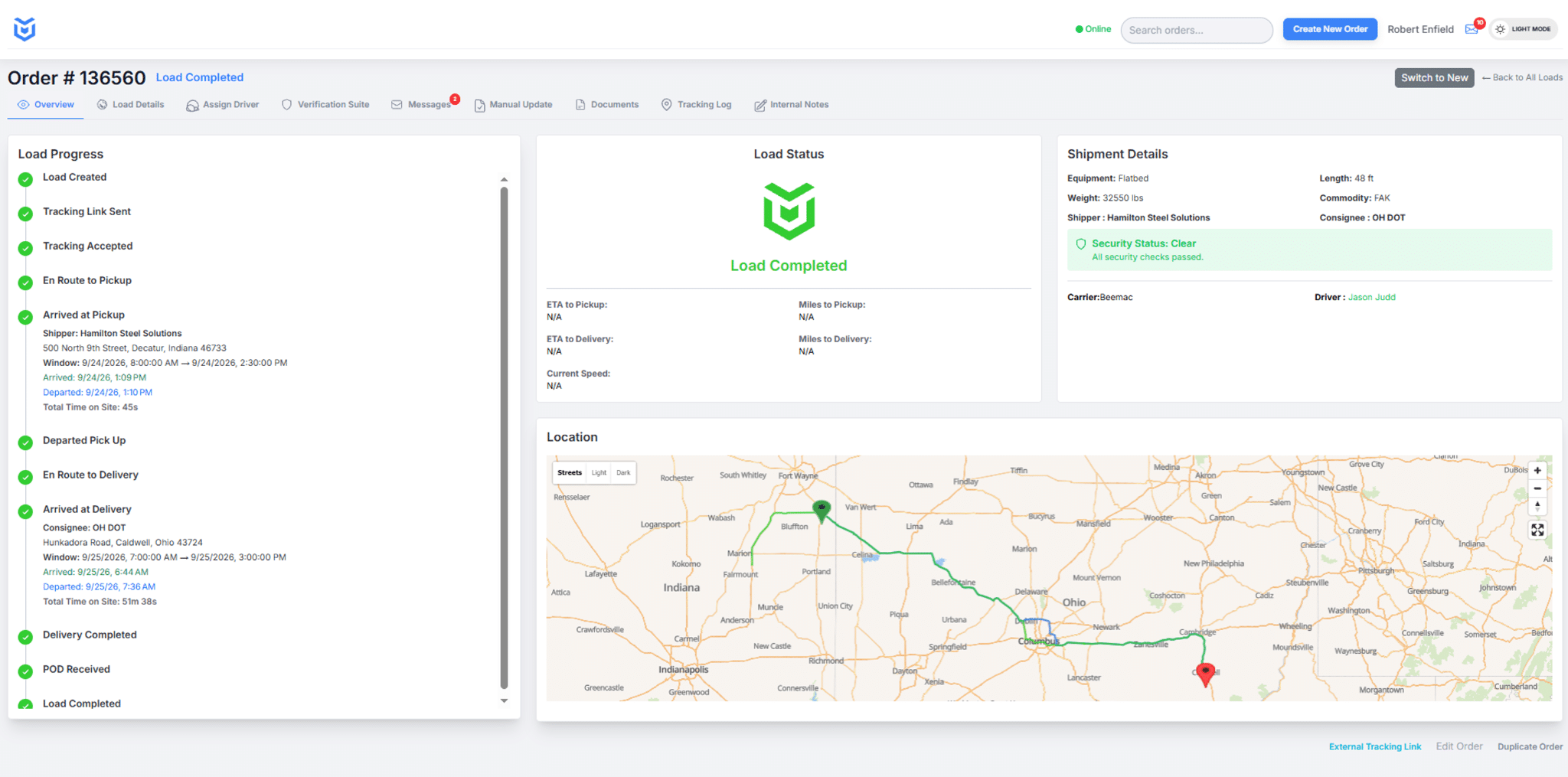
Review load progress with shipment details, driver and carrier information, security status, and the route map in the CargoGuard workspace.
What Is a Load Status Timeline?
A load status timeline is a chronological view of recorded shipment events. It helps freight brokers see how a load has progressed and identify the next item to check. CargoGuard connects that progress with the shipment’s available tracking details, pickup photos, and documents.
A map helps answer where a tracked device was. A timeline helps answer what has been recorded during the shipment. Use both, then review the evidence behind the status before telling a customer that a pickup or delivery is complete.
Read the Journey in Four Stages
These stages explain how your team can review a shipment. They are not a fixed list of software status labels; the recorded events depend on the load and the information received.
Before pickup: check readiness
Confirm the correct load and assigned driver. Review the available driver verification information and tracking setup. A load being created or dispatched does not mean that pickup has happened.
At pickup: check the handoff
Review recorded pickup activity with the truck photos and approved assignment. An arrival event is not the same as loading completion or authorization to release freight. Resolve any mismatch with the responsible contact.
In transit: check the latest update
Use the latest available status and location timestamp to answer progress questions. Review delays or shipment alerts with the load record. Follow up when the information is old, incomplete, or inconsistent.
At delivery: check the paperwork
Compare arrival and delivery updates with the captured proof of delivery. Check the shipment reference, required signatures, and exception notes. Keep missing paperwork open for follow-up.
Status, Location, and Documents Answer Different Questions
Status: What shipment event has been recorded? Read the event and available time information rather than relying on a progress color alone.
Location: Where was the tracked device at the last update? Check freight tracking details before treating an earlier map position as a current location.
Evidence: What do the photos and documents show? Review readable images, load references, signatures, and any delivery notes. A received file still needs review; its presence alone does not verify its contents.
Give the Next Person a Clear Starting Point
When a customer calls or another shift takes over, start with the load reference and latest recorded progress. Identify what is confirmed, what remains unresolved, and who is following up. Keep contact attempts and next actions in your operational records.
Example: A shipment shows arrival at the delivery site, but proof of delivery has not been received. Your team can report the recorded arrival while asking for the missing document, instead of treating the entire delivery record as complete. This is an illustrative review procedure.
The broker workflow and 3PL handoff guidance show how this review fits into a team’s daily work.
When an Update Is Missing, Check Before Assuming
Confirm the load and the last available update, then contact the driver or assigned carrier. Review app permissions and connectivity with the appropriate support contact. Mobile platforms also apply background-location controls; see Android’s background location guidance for context.
A missing event does not establish that the truck is stationary or that fraud occurred. Record the information you obtain, distinguish it from assumptions, and escalate unresolved concerns under your procedures.
Load Status Timeline Questions, Answered
How is a shipment timeline different from GPS tracking?
GPS tracking provides location information. A shipment timeline organizes recorded events in order. Review both with the supporting load records to understand progress and identify what needs attention.
Does an arrival event mean the freight has been loaded?
No. Arrival, pickup authorization, and loading completion are separate questions. Check the available pickup evidence and confirm with the responsible facility or logistics contact.
What should we do when the timeline stops updating?
Check the last update and assigned load, then contact the driver or carrier. Investigate permissions or connection issues as appropriate. Keep the concern open until you have enough information to report the shipment’s status accurately.
Does a delivery status replace signed proof of delivery?
No. A status update and a receiving document provide different evidence. Review the required proof of delivery, correct load reference, signatures, and any reported exceptions before closing the paperwork.
Can our team review photos and documents with shipment progress?
Yes. CargoGuard keeps shipment photos and captured documents with their associated load so your team can review them alongside available tracking information. Confirm user access and record-retention requirements during setup.
Can CargoGuard send shipment updates to our TMS?
Review the freight tracking API and your system requirements with CargoGuard. Confirm supported events, status mapping, and testing before relying on automatic updates between systems.
Follow the Progress. Review the Evidence.
Bring one shipment scenario to your demo. Walk through the load status timeline, supporting photos, and delivery paperwork with CargoGuard.