

Automated Shipment Alerts
Know what changed. Know who follows up. CargoGuard brings shipment milestones, delay notifications, and tracking concerns into your team’s workflow through email and SMS alerts. Review the load behind the notification and keep the right people informed.
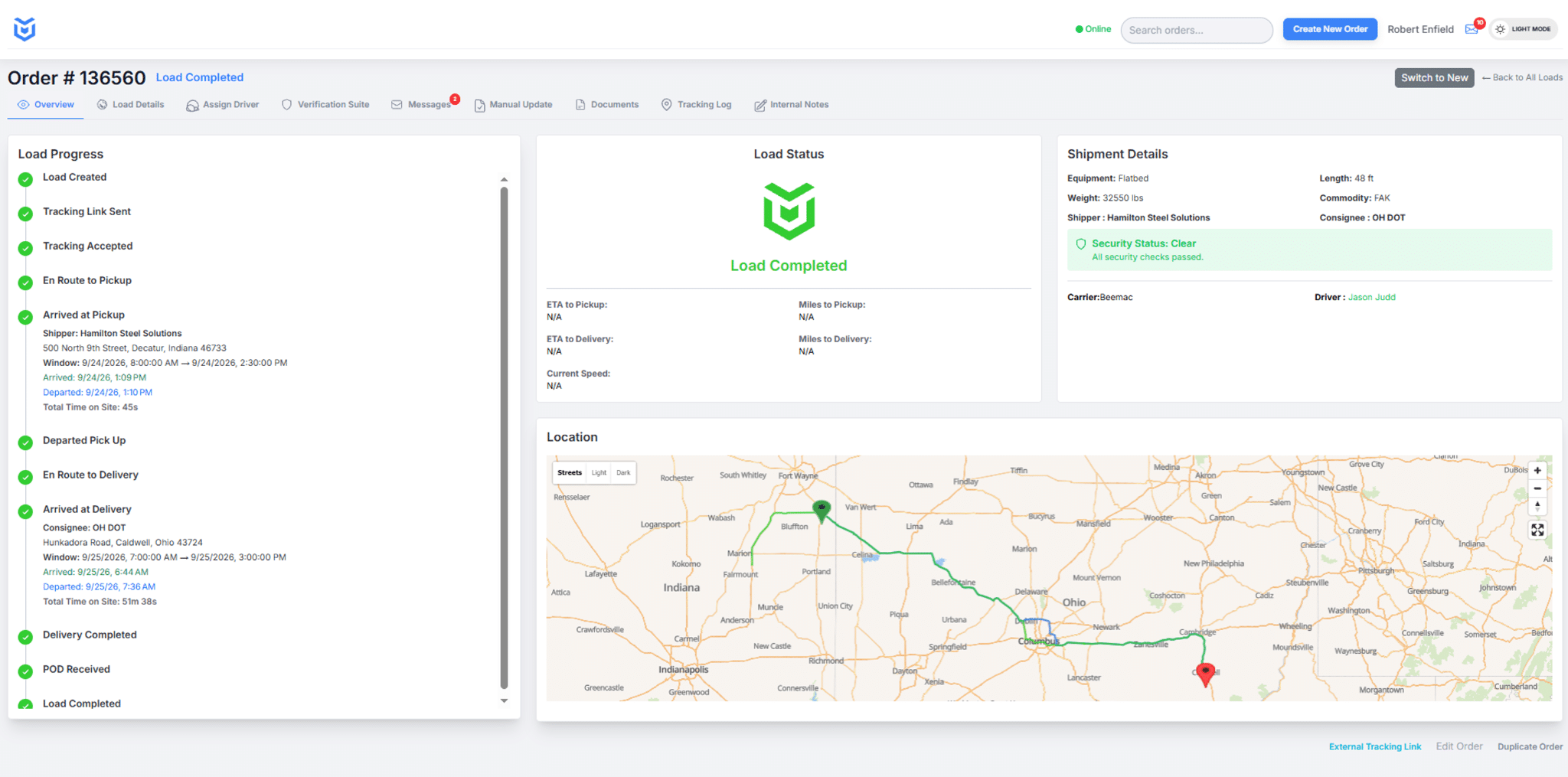
Review the Load Behind the Alert
Use the CargoGuard workspace to check shipment progress, driver and carrier details, security status, and the route map before deciding what to do next.
What Are Automated Shipment Alerts?
Automated shipment alerts are notifications generated when supported shipment events or tracking concerns are detected. CargoGuard supports updates for arrivals, departures, deliveries, delays, and potential GPS manipulation, along with device-change detection. The exact trigger conditions and recipients depend on the configured workflow.
A notification tells your team that something has been recorded or needs attention. It does not replace the load status timeline, establish pickup authorization, or confirm that someone has acted on the message.
Match the Alert to the Next Action
Shipment milestones
Arrival, departure, and delivery updates help the team follow load progress. Check the event and shipment reference; a location event and completed paperwork answer different questions.
Delays
Check the appointment, latest status, and available tracking timestamp. Contact the responsible driver or carrier to clarify the delay and give the customer a verified update.
Location and device concerns
Review potential GPS manipulation and device changes with the load record. A signal to investigate is not proof of theft, a substituted carrier, or wrongdoing by the driver.
Choose Recipients and Escalation Rules
CargoGuard supports email and SMS alerts, custom escalation rules, and automatic notifications to shippers and customers. During setup, confirm which events should reach the operations team, which updates customers need, and the available settings for each recipient.
Assign a primary responder and a backup for unresolved concerns, including after-hours loads. Keep routine progress updates separate from issues requiring a decision. Your staffing and response procedure must accompany the software settings; sending an alert does not guarantee that a person has read it.
From Notification to Follow-Up
1. Check the event and the load
Confirm the shipment reference, event type, and available time information. Review tracking details and GPS integrity checks alongside driver information. An earlier map position should not be reported as the current location.
2. Contact the responsible person
Contact the assigned driver, carrier, or facility through an established contact. Check the pickup photos or delivery documents relevant to the concern. FMCSA’s broker and carrier fraud guidance recommends verifying carrier contact information rather than relying only on details supplied in a suspicious message.
3. Record the next action
Keep the explanation, contact attempt, responsible person, and next follow-up in your operational records. Tell the next shift what is confirmed and what is still unresolved. The 3PL handoff workflow explains how to carry that review between teams.
Illustrative response: A delivery-arrival update is recorded, but the signed proof of delivery is missing. The team can report the recorded arrival while requesting the paperwork, rather than treating the entire delivery record as complete. This is a suggested review procedure, not an automatic document-approval feature.
When an Expected Alert Is Missing
Check whether the shipment event appears in the load record, then review the configured recipient, notification channel, and relevant account settings with support. For location-based events, check the latest device update and tracking participation. Android’s geofencing guidance explains that location accuracy and background behavior can affect event timing; it does not establish CargoGuard’s specific implementation.
Do not assume that no notification means no problem. Confirm the shipment through the responsible contact when an expected update is missing. Test the notification workflow before relying on it for a time-sensitive load.
Connect Shipment Events to Your TMS
The CargoGuard freight tracking API supports event webhooks for system integrations. A webhook sends event information to a connected system; it is not an email or text message to a person. Confirm supported events, status mapping, authentication, failure handling, and testing with your technical team before rollout.
Shipment Alert Questions, Answered
What triggers an automated shipment alert?
CargoGuard supports arrival, departure, delivery, delay, and potential GPS manipulation alerts, plus device-change detection. Confirm the trigger conditions and supported notification settings for your shipment workflow during setup.
Does CargoGuard send email and SMS alerts?
Yes. CargoGuard supports email and SMS notifications. Confirm the recipients and event settings for your account, and test receipt before depending on a notification for a critical handoff.
Can alerts be sent to shippers and customers?
Yes. Automatic shipper and customer notifications are supported. Agree on which shipment updates each recipient needs and keep internal investigation details limited to authorized people.
Can our team customize escalation rules?
Yes. CargoGuard supports custom escalation rules. Review the available settings against your primary responder, backup contact, and after-hours process. Software escalation still needs people assigned to investigate and act.
Does a GPS or device-change alert prove freight fraud?
No. An alert identifies information that needs review. Compare it with the shipment record, driver details, and verified contacts before drawing a conclusion or making an accusation.
Is an alert the same as a load status timeline?
No. An alert brings an event to someone’s attention. A timeline organizes recorded shipment events for review. Use both with the supporting photos and documents to understand the load.
See the Alert. Test the Response.
Bring one arrival update, one delay, and one tracking concern to your demo. Review the event, recipient, and follow-up workflow with CargoGuard.