

Truck Tracking App for Drivers and Freight Brokers
CargoGuard’s truck tracking app connects the driver’s shipment tasks with the broker’s load record. Drivers complete requested identity checks, submit pickup photos and delivery documents, and participate in GPS tracking. Brokers review the information with shipment progress in the web workspace.
See the App Drivers Use
Actual CargoGuard screens for pickup photos, the shipment map, and proof of delivery. Select a screenshot to view it full size.
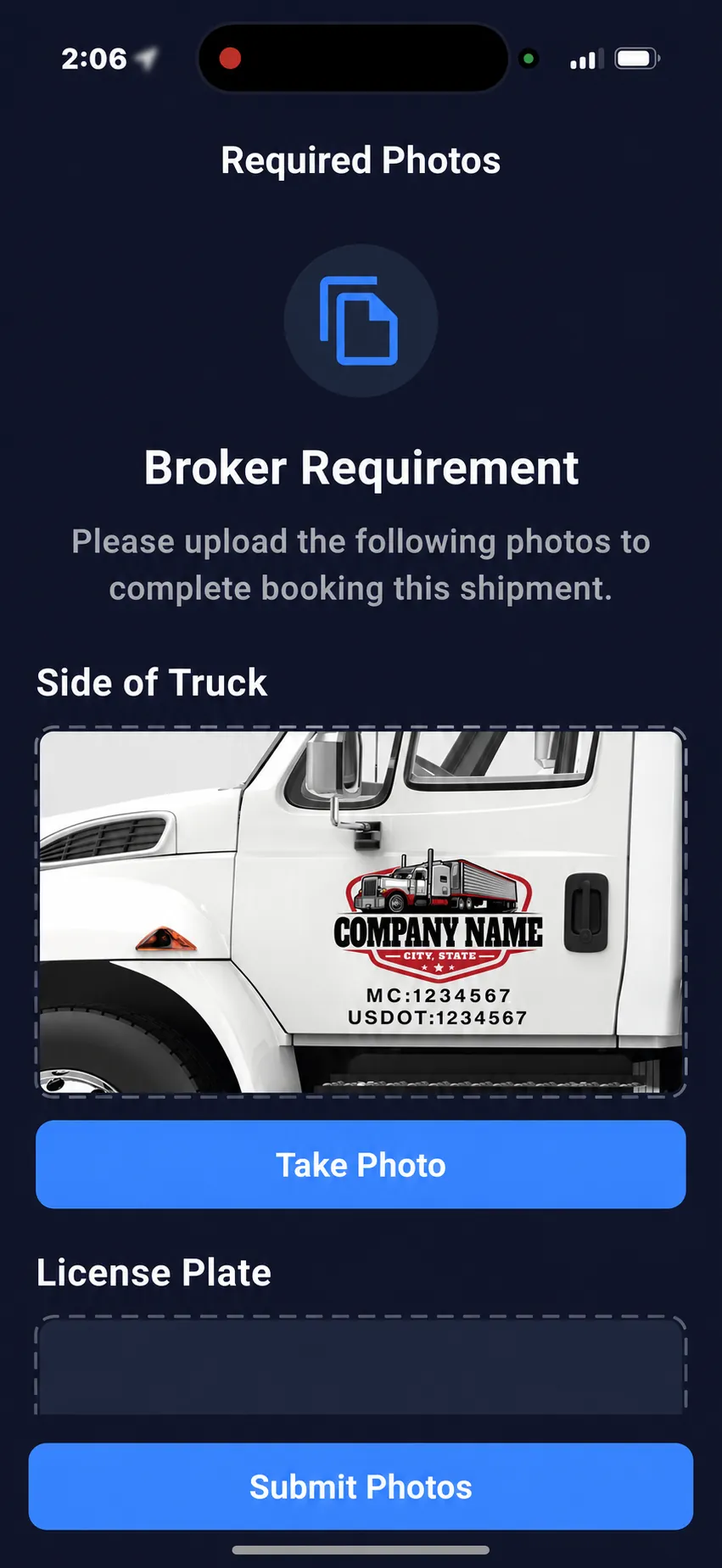
Capture the truck details requested for the load.
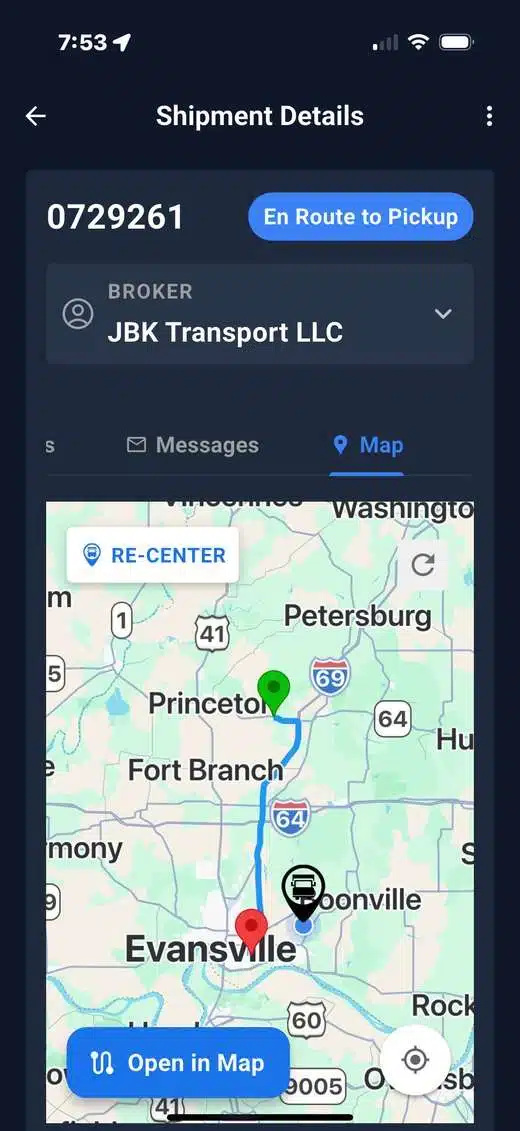
View the trip information associated with the shipment.
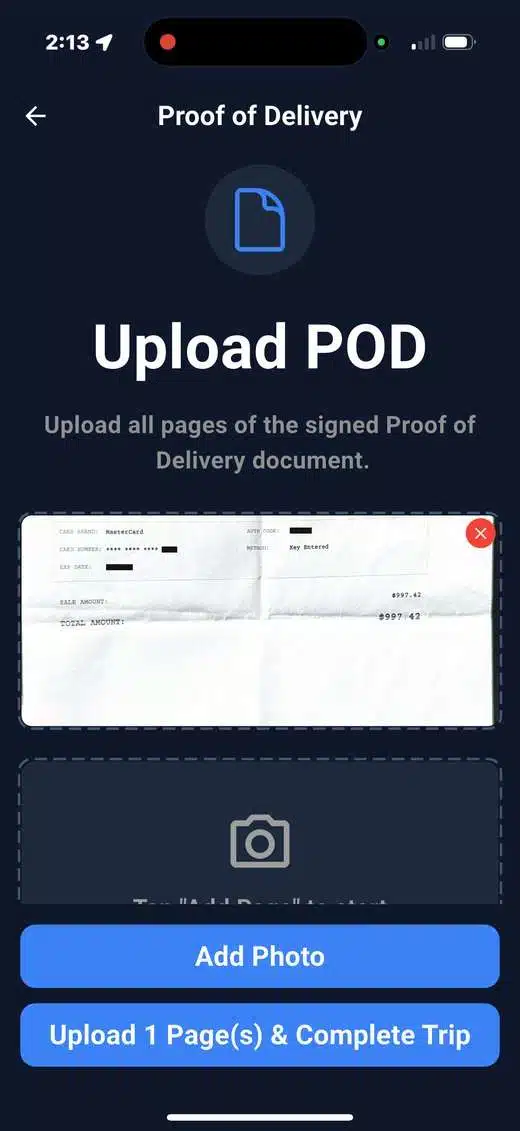
Keep the submitted delivery paperwork with the load.
One Load, Two Connected Workflows
The driver uses the mobile app to complete the tasks requested for an assigned shipment. The broker uses CargoGuard’s web workspace to review load progress, tracking updates, driver details, photos, and documents together. Start with the installation and shipment instructions supplied by your assigned broker or CargoGuard.
For a brokerage evaluating the wider platform, review our freight broker tracking workflow. For location-update behavior and tracking exceptions, see real-time freight tracking.
Shipment Tasks in One App
The CargoGuard mobile driver app connects driver verification, requested photos, shipment tracking, and document capture with the assigned load. Drivers follow the prompts on their phone. Brokers review the submitted information alongside shipment progress instead of separating the paperwork from the trip.
Before the first pickup, confirm the setup instructions, required tasks, and support contact with the assigned broker. Start while safely parked and allow time to resolve an unclear document or a shipment detail that does not match. The sections below describe the workflow, not a guaranteed completion time.
Before Pickup: Complete the Driver Checks
Follow the requested license, selfie, and vehicle-registration steps. Capture readable documents and check that the information relates to the driver and equipment assigned to the load. CargoGuard keeps this information available for the broker’s driver verification review.
A submitted document and an approved pickup are different things. When a driver or truck changes, tell the responsible broker and follow the facility’s release procedure. Do not assume that completing a phone prompt authorizes collection of the freight.
At Pickup and Delivery: Capture the Evidence
Pickup photos: Follow the location-based photo requests for the load. Keep carrier markings and requested plate details readable. Park safely, follow the facility’s photography rules, and check for blur or glare before submitting an image.
Shipment paperwork: Capture bills of lading and proof of delivery through the document-capture workflow. Camera-to-PDF conversion turns photographed paperwork into files associated with the shipment. Keep all required pages, reference numbers, signatures, and delivery notes readable.
Confirm that the submitted photo or document appears with the correct load. When a file is missing or unreadable, tell the broker which task needs attention and provide a clearer copy as requested. An uploaded document still needs review; converting it to a PDF does not verify its contents.
On the Road: Support Shipment Tracking
During active tracking, CargoGuard supports five-second GPS location updates. Actual updates depend on the tracking session, phone permissions, location availability, and connectivity. Brokers can use freight tracking information with the driver details, photos, and documents to follow the shipment.
Complete setup before driving and keep the phone charged for the trip. The broker should check the latest update time rather than treat an older map position as current. A tracking interruption calls for follow-up, not an automatic accusation of fraud. Shipment alerts support that review.
Understand Permissions and Get Help
Camera access supports document and photo capture. Location access supports shipment tracking and location-based tasks. Phone settings can affect location access when the app is not on screen; Android’s location-permission guidance explains the distinction between foreground and background access.
Review the app’s permission notices and confirm when tracking starts and ends, who can view the shipment information, and the applicable data-retention arrangements during onboarding. Do not assume that a completed delivery document changes the tracking session or permission settings.
When something is not working, check the assigned load, the latest visible status, and the relevant camera or location permission. Contact the broker or the support contact provided during setup. Share the task name and error message, but keep identity documents and shipment details out of public posts or unrelated messages.
For Brokers: Test One Complete Driver Workflow
Walk through one load from the driver’s phone to your shipment record before expanding use. Confirm installation instructions and supported phones, required checks, photo requests, tracking participation, and delivery-document review. Make sure the driver knows whom to contact at pickup and after hours.
Use the broker workflow and shipper pickup checklist to agree on responsibilities. Measure whether the required records are complete and usable; do not rely only on the number of tasks submitted.
Mobile Driver App Questions, Answered
How does the truck tracking app connect with the broker’s workspace?
Drivers complete requested shipment tasks in the mobile app. Brokers review the associated tracking information, driver details, pickup photos, and delivery records in the web workspace. Confirm the assigned load, setup requirements, and support contact before the first pickup.
What can drivers do in the CargoGuard app?
Drivers can complete requested identity and registration checks, capture shipment photos, submit bills of lading and proof of delivery, and participate in shipment tracking. These activities stay connected to the associated load for broker review.
How does a driver get started?
Use the installation and shipment instructions supplied by the assigned broker or CargoGuard. Confirm an unexpected request through a known contact before submitting personal documents. During setup, review phone compatibility, permissions, and the tasks required for the load.
How long does driver verification take?
The time depends on the required checks, document readiness, image quality, and any follow-up needed. Complete the prompts before the pickup appointment where possible. A submitted task is not a promise of instant approval.
How often does shipment tracking update?
CargoGuard supports five-second GPS updates during active tracking. Updates can be affected by device permissions, location availability, and connectivity. Check the latest recorded timestamp and confirm the tracking configuration during setup.
Can drivers upload bills of lading and proof of delivery?
Yes. Drivers can photograph those documents through the app and use camera-to-PDF capture to keep them with the shipment. Check page completeness, readability, and the correct load reference before submission.
What should a driver do when tracking or an upload stops?
When safely parked, check the assigned shipment, connection, and relevant app permissions. Contact the broker or support contact with the task name and error message. Confirm receipt of a replacement upload rather than assuming it reached the load record.
Walk Through the Driver Experience
See the requested driver checks, pickup photos, tracking, and delivery documents in one CargoGuard demo. Bring a real shipment workflow and the questions your drivers ask.